Thursday, December 1, 2011

Learn how to improve your blog! This Blog offers you basic tutorials on how to improve your blog quality, search engine rankings and how to get more visitors.By following our tips your blog or website can become search engine friendly. You have to note that optimization for search engines is long process that take lot of time and effort,but your website or blog will show some amazing results over time.

On Page optimization to get better ranking part 1

Most important factor on your website must be your content,having a quality blog or website means providing your visitors fresh and unique content that is relevant to your choosen subject,because content is king.If you have quality content it is more likely someone will link to you,getting you traffic,better page rank,more visitors and more important blog/web site.

Quality content = more visitors = more natural backilinks = better pagerank = better ranking

In this post we will discuss On page Seo factors like:
-Interlinking your web pages
-Unique content on every page
-Unique Meta tags for each page
-Proper use of H1-H6 tags
-Proper url setup
-Use of Alt tags and descriptive title on images
-proper use of ancohor text when interlinking
-making sure that there is only one version of page available
-proper use of rel="nofollow"
-Making sure your code is valid


Interlinking your pages means that you have to set up navigation on your web site correctly so any web page on your web site can be accessed from any other page.This is important so users as well as robots can reach every signle web page on your web site.

Unique content is very important,if you have indetical content on different web pages you can even get penalty for duplicate content,so keep that in mind!

It is best if you can set up unique meta Title and Meta description for every single post or web page,if you are using blogging platforms like blogger you will probably need to make code tweaks in template code to make this work.There are many tutorials on how to do this.

Headlines on web pages should be put in code tags like tags like this <h1>Big Title</h1>,it is advisable that you have only one h1 title.In pratice the minimum you should use would be one h1 tag for main title of your web page or blog and h2 for any small titles. The proper use would be to use h titles in hierarchy like this(Html example):

<h1>Big Title</h1>

<h2>1.Title</h2>
<p>Content</p>
<h3>1.1 Title</h3>
<p>Content</p>
<h4>1.1.1 Title</h4>
<p>Content</p>

More on on page Seo in part 2..

Basics about Optimization for Search engines

Most bloggers quit updating their blogs because of low traffic, having a blog is not just putting new content or reuglar basis.Putting new content is only half of the job of having a sucessfull blog,other part of job is to ensure your blog gets visitors.There are two types of traffic: paid and unpaid.Paid traffic comes trough advertising on other websites and is only usefull if you can make more money with your blog or website than what you pay for advertising.

Unpaid or organic traffic comes from search engines and other web sites or blogs that have link to your blog/web site.This is the best traffic because you can be sure that people will only come to your blog if they are really interested in content rather than accidently clicking on ads.

Most webmasters and bloggers aim for organic search engine traffic because of that.There is whole area in marketing that deals with website rankings in search engines and its called Search engine optimization or SEO.

Serach Engine Optimization or SEO is technique that is used to get the best available spot in SERP(Search engine Result Page) for choosen keyword.SEO involves many factors that must be improved to get higher rankings.It's lot harder to do SEO on blog because of limited acess to code.There are many things that blogger or webmaster should watch for if they want to get good place in search engine results.

Better place in Search Engine = More Visitors.

SEO is devided in two sections - On page SEO
                               - Off page SEO

On page SEO involves any factors that can be changed on page or in the source code of page such as Meta tags,Right use of H1-H6 titles,Keyword density and so on, and Off page seo involves some factors that can be changed outside of page such as Number of backlinks your website or blog gets,Google PageRank..etc.

Backliniks are links that lead to your blog/post/web site/web page from some other web site or blog.Backliniks can be DoFollow or NoFollow.DoFollow links pass PageRank from page that links to you and your Web site or Blog.No Follow backlinks are useless.

This is how NoFollow backlinks look like in HTML code:
<a href="http://www.example.com/" rel="nofollow">Link text</a>

This is how DoFollow backlinks look like in HTML code(only missing the rel="nofollow" attribute):
<a href="http://www.example.com/">Link text</a>

PageRank is algorithm that was devloped by Larry Page and it shows importance of the web page by considering more than 500 million variables and 2 billion terms.PageRank is shown with numbers that go from lowest 0 to highest 10(note that there are only few websites with PageRank 10 such as Facebook,Google..)

PageRank is only relevant for Google Search engine and it can be checked by installing Google Toolbar on your web browser and going to web site wich PageRank you would like to know.Toolbar PageRank is updated once evry three months or close to that while real internal PageRank of websites is updated on constantly.

More about Seo in new posts...

Basics about Meta Tags

Meta tags or Meta Elements are HTML and XHMTL elements that provide information about Web Page.Most used meta tags are: Title,Description,Keywords,Author etc..Altought in most cases only Meta Title and Description are used.Meta tags also contain technical data about web page code language,charset and to allow or disallow crawling of web page by different search engine robots.

Robots(Web crawlers,Web spiders) are computer programs used by search engines that creates copy of crawled web page in search engine index.Index is database of copied web pages crawled by robot.Index is used by search engines to provide user almost instant results when they are searching the internet.

Meta tags(Title and Description,sometimes Keywords) are one of the biggest factors that shows search engines what your web page is about.Web pages with no meta tags are seen in eyes of robots like low priority web pages and therefore they mostly will rank at end of search results for given query.

On most blogging platforms Meta Title and Description can be set in options of blog,so there is no need to change any source code of blog.
If you are owner of blog or website you can use tools like meta blog stats to ensure that your meta tags are set up correctly.Your meta tags should be related to your website or blogs content.

If you host blog for example about gaming,you should metion words like games or gaming in your meta title and description so that the users and the robosts know what your blog is about.This way Serach engine will give you better place in Search results for keyword gaming or games, and the users will have better idea on what to expect on your blog before they enter.

So you don't only write your meta tags for robots,you write it for human visitors too.
Keep in mind that if you put something like this:"Games,Gaming,Gamers,Fun games" as yout meta Description you will get penalty by search engines for keyword stuffing,and probably users wont click your site form search engine results if they see unattractive text like that in description.

Keyword stuffing is action where user tries to manipulate search engine results by putting alot of keywords in title,description and body of the page, making the page unreadable for human visitor in exchange for higher ranking in the search engine results.Search engines algotihm has evolved trought the years and is now fully capable to recognize when someone is trying to do this, some users have done keyword stuffing by putting keywords in the bottom of page and putting it in the same color as web page background,that way they did stuffing and it doesn't bother visitor to read normal text in body,in most cases visitor can't notice that web page is doing keyword stuffing,luckly agian search engine algoritam is designed to recognize this and people caught using this tehniques can get they web site or blog banned permenatly from search engines.

Almost all search engines(Bing,Yahoo,Google..) today uses only Title and Description Meta tag while Keyword meta tag is only used by Yahoo.

For optimal results your meta tags should look like this:

<title>Site name - Page title - Keyword description</title>
<meta name="description" content="Describe the content of the page here in short using relevant words" >

Wi-Fi and Laptops Can Cause Male Infertility

New research has indicated that using a laptop with a wireless Wi-Fi connection could leave up to a quarter of men infertile.
The study involved placing specimens of sperm under a laptop connected to the internet via Wi-Fi and it was proven that the sperm under the computer were far more damaged than those away from the signal.
At the end of the experiment, a quarter of the sperm had stopped moving, 9 per cent showed some damage compared with just 14 per cent that were away from the Wi-Fi had stopped moving.
Scientists from the United States and Argentina believe that the wireless connection creates electromagnetic radiation that could damage semen
Conrado Avendano, the lead researcher of the group conducting the experiment, Nascentis Medicina Reproductiva said: “Our data suggest that the use of a laptop computer wirelessly connected to the internet and positioned near the male reproductive organs may decrease human sperm quality.
“At present we do not know whether this effect is induced by all laptop computers connected by Wi-Fi to the internet or what use conditions heighten this effect.”
Dr Robert Oates, the president of the Society for Male Reproduction and Urology doesn’t believe laptops are a significant risk to men’s health.
“This is not real-life biology; this is a completely artificial setting,” he said.
“It is scientifically interesting, but to me it doesn't have any human biological relevance.
“Suddenly all of this angst is created for real-life actual persons that don’t have to be.”

How To Protect Your Facebook Account From Hackers And Phishing Scams Read more: http://www.sfgate.com/cgi-bin/article.cgi?f=/g/a/2010/05/14/businessinsider-how-to-protect-your-facebook-account-from-hackers-and-phishing-scams-2010-5.DTL#ixzz1fJPupnEx

Yesterday, Facebook introduced some new features to help users protect their accounts from being accessed by others without the users' knowledge.
The new features let you register the computers and mobile devices you regularly use to access Facebook, then notify you via email or SMS whenever your account is accessed from a device Facebook doesn't recognize.
This is a good security innovation for Facebook (and comes at a time when the company needs some positive news about how it handles privacy). Unfortunately, setting it up isn't entirely straightforward, especially if you want to be notified via text message.
Never fear: we've put together a step-by-step guide to setting up these notificati

Go to Facebook, and choose 'Account Settings' from the Account drop-down menu in the upper-right corner of the window

Go to Facebook, and choose 'Account Settings' from the Account drop-down menu in the upper-right corner of the window

Click the 'change' link across from 'Account Security'

Click the 'change' link across from 'Account Security'

Toggle this to 'Yes' and click submit. From now on, you'll have to register each device you log in to Facebook with, and you'll get an email whenever your account is accessed from a new device.

Toggle this to 'Yes' and click submit. From now on, you'll have to register each device you log in to Facebook with, and you'll get an email whenever your account is accessed from a new device.

Here's what happens when you log in from a device Facebook doesn't recognize. My work computer is now named Fred.

Here's what happens when you log in from a device Facebook doesn't recognize. My work computer is now named Fred.

A few minutes later, an email arrived telling me that a computer named Fred has accessed my account.

A few minutes later, an email arrived telling me that a computer named Fred has accessed my account.

You can also get these notifications via SMS, but if you don't already get texts from Facebook, you need to set that up. Go back to account settings, click the 'Notifications' tab, and click on the 'Send notifications to my phone' link.

You can also get these notifications via SMS, but if you don't already get texts from Facebook, you need to set that up. Go back to account settings, click the 'Notifications' tab, and click on the 'Send notifications to my phone' link.

That brings up this pop-up window. Choose your mobile service provider. (Weep softly to yourself if this is your choice.)

That brings up this pop-up window. Choose your mobile service provider. (Weep softly to yourself if this is your choice.)

Send a text to the number they give you with the letter 'f' in it.

Send a text to the number they give you with the letter 'f' in it.

You should get a text like this back from Facebook almost immediately

You should get a text like this back from Facebook almost immediately

Enter the code from your text, and click 'Confirm'

Enter the code from your text, and click 'Confirm'

WARNING: Now that you've activated text updates, Facebook will text you very frequently by default. Uncheck all of these boxes if you don't want texts about normal Facebook activity.

WARNING: Now that you've activated text updates, Facebook will text you very frequently by default. Uncheck all of these boxes if you don't want texts about normal Facebook activity.

Scroll down, and continue to customize when you want to hear from Facebook. When it's all set, click 'Save Preferences'

Scroll down, and continue to customize when you want to hear from Facebook. When it's all set, click 'Save Preferences'

Now when you go back to 'Account Security', you'll have the option to get texts whenever your Facebook account is accessed from a new device. If anyone has your password, you'll know immediately. That's it!

Now when you go back to 'Account Security', you'll have the option to get texts whenever your Facebook account is accessed from a new device. If anyone has your password, you'll know immediately. That's it!

Siri, Are You Anti-Abortion? apple


Is Siri a pro-lifer? It seems that Apple's amazing, voice-initiated personal assistant has a decided lack of knowledge about abortion services and emergency contraception.
At least that's what a growing number of iPhone 4S owners are reporting. They say that when they ask variations of "Where can I get an abortion?" Siri directs them to so-called Crisis Pregnancy Centers (CPCs), organizations that do not provide abortions but instead advise women seeking them to go through with their pregnancies.
Siri users in Washington D.C. report that Siri points them to CPCs in Virginia and Pennsylvania rather than directing them to the Planned Parenthood inside the Beltway. In New York, users of Apple's iPhone 4S say that Siri responds, "I didn't find any abortion clinics," despite there being many in the city.
The Raw Story, meanwhile, has helpfully put together a list of "things the iPhone Siri will help you get instead of an abortion." It turns out Siri is happy to provide questioners with everything from Viagra to escort services if asked—which makes the celebrated AI's blind spot when it comes to abortion services all the more puzzling.
But puzzling enough to suggest an anti-choice agenda foisted upon iPhone users by Siri's creators? That's what some folks appear to be wondering.
They should rest assured that Siri is definitely not out to overturn Roe v. Wade or insert itself into the political arena at all, if it can help it.
"Our customers want to use Siri to find out all types of information and while it can find a lot, it doesn't always find what you want," an Apple spokesperson told PCMag.com Wednesday. "These are not intentional omissions meant to offend anyone, it simply means that as we bring Siri from beta to a final product, we find places where we can do better and we will in the coming weeks."
What's likely is that asking about abortion services confuses Siri because of what's turning up in its searches when it tries to help its interlocutors. It may be that CPC websites use the term "abortion" in their keywords more than organizations like Planned Parenthood, because it's a politically charged word.
After all, iPhone 4S users have also reported having no trouble getting answers from Siri when they specifically ask for a nearby Planned Parenthood by name. If Siri really was out to misdirect women seeking abortions, wouldn't it bury those results, too?
Siri may also be having trouble with the default search engine it uses, Wolfram Alpha, which is a "computational knowledge engine" that presents results to queries in a much more dynamic way than Google and other search engines that provide simple, hierarchical lists of links.
"Ask WolframAlpha about abortion, contraception, Planned Parenthood and you get the most confused responses," notes one commenter on The Abortioneers blog.

28 iPad 2 Tips and Tricks

Your new iPad 2 might not be as full-featured (or as complicated) as a laptop or desktop PC, but a few neat tricks are still hidden between the surface. Read on to learn how to secure your iPad, sync your bookmarks, and more.
Download the free iPad User's Guide: You may have noticed that your iPad didn't come with a big printed manual--that's not Apple's style. However, you can download the PDF version of the iPad User's Guide from Apple's Web site, or you can read it in iBooks if you have that installed (iBooks is available as a free download in the App Store). Make sure to download the manual for iOS 4.3.
Take a free guided tour: Apple provides video tours for each of the preinstalled apps, so you can get a good look at how to use them.
Use the Side Switch: You can use that neat switch on the side either to enable and disable audio alerts (this doesn't affect video/audio playback) or to lock the screen's orientation in portrait or landscape mode. You can toggle which function is assigned to the side switch by opening Settings from the Home screen, selecting General, and choosing the function you want under the 'Use Side Switch to' heading.
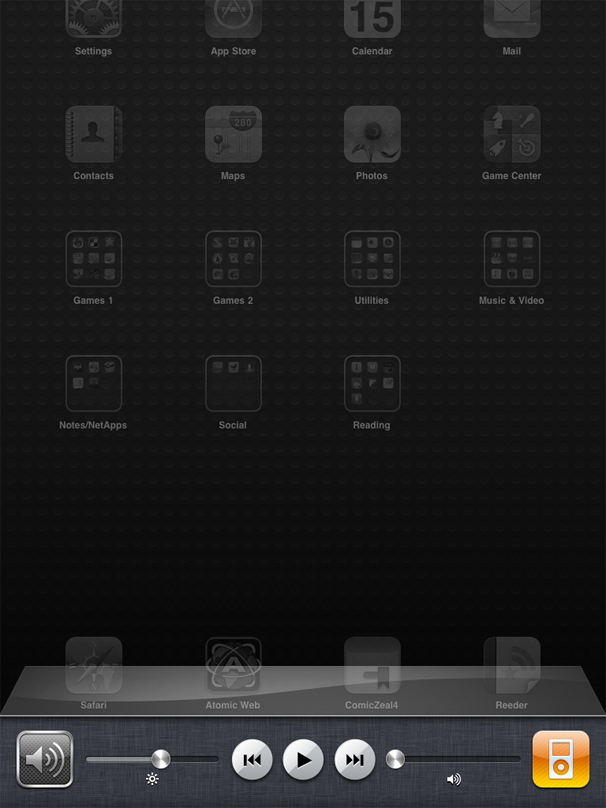
Multitasking and audio controls on iPadMultitask in iOS: You probably already know that you can press the Home button twice to bring up a list of currently running or suspended apps. However, you can also swipe the multitasking bar left to right to quickly access audio/video playback controls, a shortcut to the iTunes app itself, and volume controls. Also, when you choose whether the Side Switch should mute alert sounds or lock the screen orientation (see the item above), the function you didn't choose will appear in this shortcut bar.
Speed up your sentences: Double-tapping the spacebar while typing a message will type a period and then a space.
Don't let AutoCorrect mess you up: If you don't like the option AutoCorrect gives you, reject it by finishing the word as you prefer, and then tapping the suggestion. If you want to use AutoCorrect's choice, just type a space or punctuation mark, or tap Return, the moment it pops up.
Secure your backups: You can encrypt your iPad's backup data in iTunes. Just open the iPad in iTunes, click the Summary tab, and check Encrypt iPad backup under the Options heading.
Prevent automatic sync once: Sometimes you don't want to sync your iPad when you connect it to your computer. In this case, hold down Shift-Control (or Command-Option, on a Mac) in iTunes while plugging your iPad in, and iTunes will skip the automatic sync just once. Alternatively, you can safely interrupt a sync by dragging the unlock slider while the iPad is midsync.
Toggle data roaming: If you're using a 3G iPad, you can turn data roaming on in the Settings, Cellular Data menu in case you want to try receiving cellular Internet through a different provider (fees may apply). You can also check your data usage by going to Settings, General, Usage.
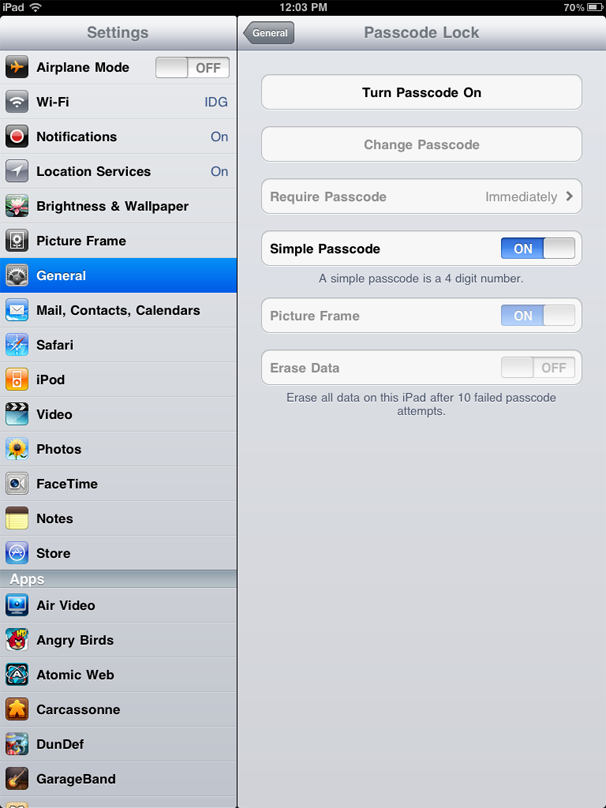
iPad passcodeMake your passcode more complicated: iOS defaults to a four-number passcode, but you can turn it off by going to Settings, General, Passcode Lock, Simple Passcode. Now you can use any full keyboard password to lock the iPad. The password also helps to encrypt your mail and attachments on the iPad, so you probably want to make it safer than a four-digit number.
Set the iPad to self-destruct in 10 seconds: Okay, not really--but you can set the iPad to erase all data after ten failed passcode entry attempts by checking the Erase Data option under Settings, General, Passcode Lock.
Tweak AutoFill: You can choose to enable Safari's AutoFill feature in Settings, Safari, AutoFill. From there, you can tell Safari to fill forms automatically either by using your specified contact information or by remembering the names and passwords you've entered while logging in to Websites in the past.
Sync your bookmarks: You can use iTunes to sync your iPad's Safari bookmarks with your PC's Web browser. Open the iPad tab in iTunes, click the Info tab, scroll down to the Other heading, check Sync bookmarks with, and choose your preferred browser.
E-mail photos: The easiest way to e-mail photos from an iPad is to open the Photos app, select a photo, press the button in the upper-right corner (the rectangle with the arrow, not the trash button), and choose Email photo... to send.
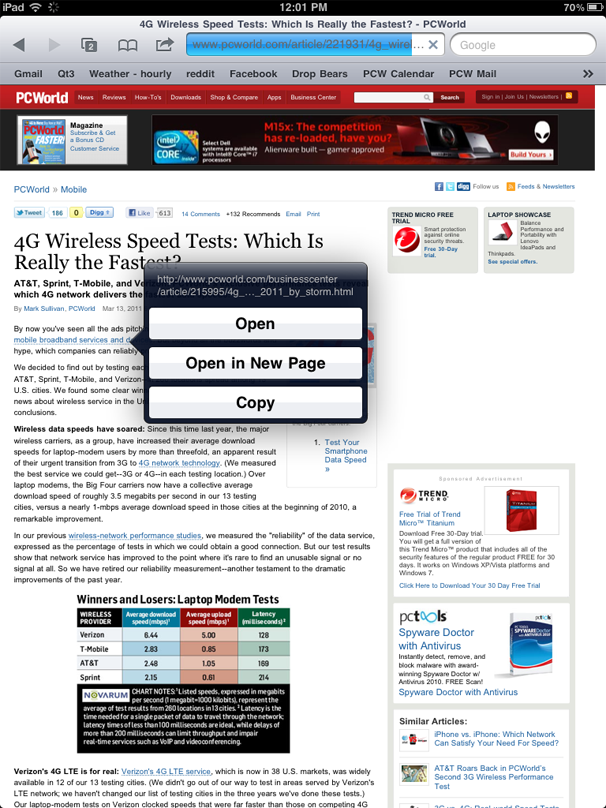
Web page links on iPadKnow your Web links: You can check a linked word's actual destination URL by touching and holding down on the link--it's a perfect way to sniff out phishy links.
Choose an app for e-mail attachments: You can open a file attached to an e-mail message by tapping the attachment in Mail, but if the default app isn't the one you want to use, you can press and hold and wait for a menu that lets you select an app.
Use the iPad as a picture frame: Not for physical photographs, silly. You can press the Picture icon in the lower-right corner of the Lock screen to have the iPad display its available photos.
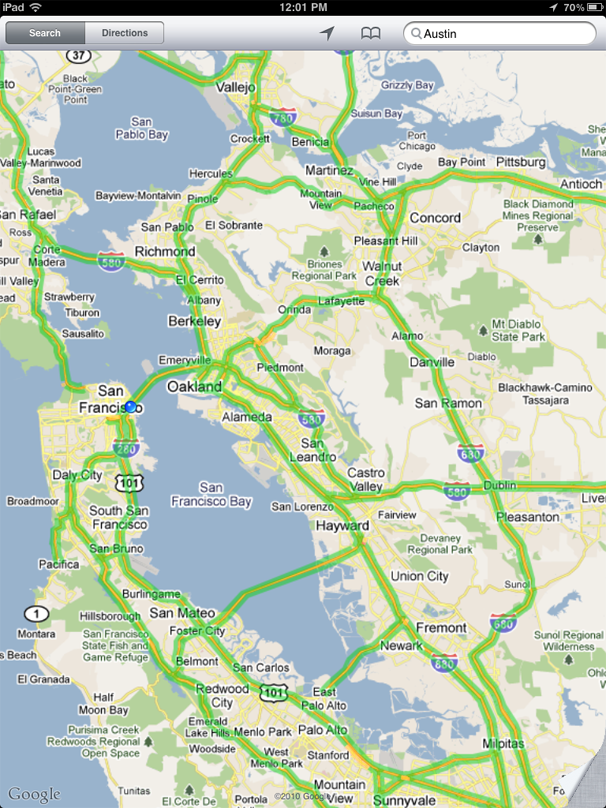
Traffic conditions on iPadShow traffic conditions: Open Maps, press the dog-eared page icon in the lower right, and then turn the Traffic overlay on. If your iPad has an Internet connection, Maps will show real-time traffic conditions in the displayed area. Green means traffic is going at the posted speed limit, yellow means traffic is slower than the posted speed limit, and red means traffic is stop-and-go.
Share podcasts with friends: Listening to a podcast that you think a friend would like? You can share the link while you're listening to it by pressing the Email button while it's open.
Don't forget your downloads: You can immediately see if your iTunes account is due for any incoming downloads by opening iTunes on your PC, clicking the Store menu, and selecting Check for available downloads. This trick can come in handy if your download process is interrupted, or if you missed some bonus iTunes content that came with an album you purchased.
Turn on Universal Access: You can enable options such as closed-captioned movies, VoiceOver screen reading, zoom magnification, and inverted white-on-black text by selecting the iPad in iTunes, opening the Summary tab, and clicking Configure Universal Access under the Options heading.
Forget Wi-Fi networks: So you accidentally connected to a network once, and your iPad remembers it for life--whether you like it or not. On your iPad, go to Settings, Wi-Fi, and find the network under the 'Choose a Network' heading. Tap the blue arrow next to the network you want to remove, and tap the button on the top that says Forget this Network.
Specify your Spotlight searches: The iPad uses Spotlight for its built-in search functions, and you can tweak it to your needs in Settings, General, Spotlight Search. If you have a lot of data on your iPad, for example, you can selectively disable search in different categories (Contacts, Applications, Audiobooks, Notes, Events, Mail, and so on) that you don't use so that your desired results show up faster. You can also simply change the order in which the search-result categories display by dragging them up and down, so that your more frequently used search categories show up at the top of the page.
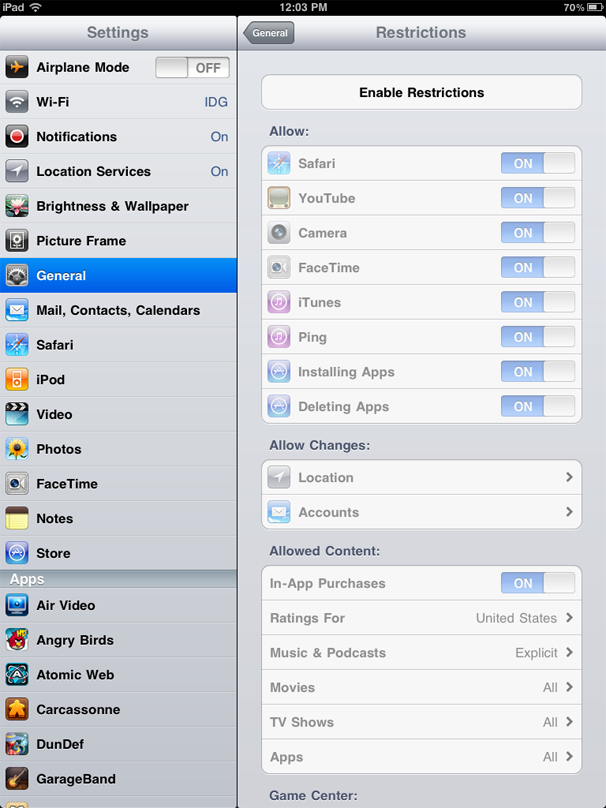
Restricting in-app purchases on iPadTurn off in-app purchases: Go to Settings, General, Restrictions and tap Enable Restrictions to selectively enable restrictions that apply to your apps, content, Game Center, and more. If you're worried about other people breaking your bank account on in-app purchases, just disable In-App Purchases under the 'Allowed Content' setting.
Switch up the fetching frequency: Your iPad automatically grabs new data, such as incoming e-mail. However, the iPad periodically activates apps that don't support iOS's Push feature so that they can go "Fetch" new data--which uses the tablet's battery life. You can tweak your Push and Fetch settings in Settings, Mail, Contacts, Calendars, Fetch New Data.
Change your e-mail signature: Don't be one of those people who leave the default 'Sent from my iPad' signature on all their messages. Change it in Settings, Mail, Contacts, Calendars, Signature to...well, anything but that.
Swap the search engine: Too good for Google? You can change Safari's default search engine by going to Settings, Safari, Search Engine. Alas, you can only choose from Google, Bing, or Yahoo--no bringing back AltaVista for you.
Take a screenshot of whatever is on the screen: Press Home and the sleep/wake button simultaneously. The screenshot will automatically appear among your photos.
Patrick Miller mostly covers how-tos and HDTVs for PCWorld, but every now and then they let him play with an iPad. Follow him on Facebook   or Twitter.