Thursday, December 1, 2011

Wi-Fi and Laptops Can Cause Male Infertility

New research has indicated that using a laptop with a wireless Wi-Fi connection could leave up to a quarter of men infertile.
The study involved placing specimens of sperm under a laptop connected to the internet via Wi-Fi and it was proven that the sperm under the computer were far more damaged than those away from the signal.
At the end of the experiment, a quarter of the sperm had stopped moving, 9 per cent showed some damage compared with just 14 per cent that were away from the Wi-Fi had stopped moving.
Scientists from the United States and Argentina believe that the wireless connection creates electromagnetic radiation that could damage semen
Conrado Avendano, the lead researcher of the group conducting the experiment, Nascentis Medicina Reproductiva said: “Our data suggest that the use of a laptop computer wirelessly connected to the internet and positioned near the male reproductive organs may decrease human sperm quality.
“At present we do not know whether this effect is induced by all laptop computers connected by Wi-Fi to the internet or what use conditions heighten this effect.”
Dr Robert Oates, the president of the Society for Male Reproduction and Urology doesn’t believe laptops are a significant risk to men’s health.
“This is not real-life biology; this is a completely artificial setting,” he said.
“It is scientifically interesting, but to me it doesn't have any human biological relevance.
“Suddenly all of this angst is created for real-life actual persons that don’t have to be.”

How To Protect Your Facebook Account From Hackers And Phishing Scams Read more: http://www.sfgate.com/cgi-bin/article.cgi?f=/g/a/2010/05/14/businessinsider-how-to-protect-your-facebook-account-from-hackers-and-phishing-scams-2010-5.DTL#ixzz1fJPupnEx

Yesterday, Facebook introduced some new features to help users protect their accounts from being accessed by others without the users' knowledge.
The new features let you register the computers and mobile devices you regularly use to access Facebook, then notify you via email or SMS whenever your account is accessed from a device Facebook doesn't recognize.
This is a good security innovation for Facebook (and comes at a time when the company needs some positive news about how it handles privacy). Unfortunately, setting it up isn't entirely straightforward, especially if you want to be notified via text message.
Never fear: we've put together a step-by-step guide to setting up these notificati

Go to Facebook, and choose 'Account Settings' from the Account drop-down menu in the upper-right corner of the window

Go to Facebook, and choose 'Account Settings' from the Account drop-down menu in the upper-right corner of the window

Click the 'change' link across from 'Account Security'

Click the 'change' link across from 'Account Security'

Toggle this to 'Yes' and click submit. From now on, you'll have to register each device you log in to Facebook with, and you'll get an email whenever your account is accessed from a new device.

Toggle this to 'Yes' and click submit. From now on, you'll have to register each device you log in to Facebook with, and you'll get an email whenever your account is accessed from a new device.

Here's what happens when you log in from a device Facebook doesn't recognize. My work computer is now named Fred.

Here's what happens when you log in from a device Facebook doesn't recognize. My work computer is now named Fred.

A few minutes later, an email arrived telling me that a computer named Fred has accessed my account.

A few minutes later, an email arrived telling me that a computer named Fred has accessed my account.

You can also get these notifications via SMS, but if you don't already get texts from Facebook, you need to set that up. Go back to account settings, click the 'Notifications' tab, and click on the 'Send notifications to my phone' link.

You can also get these notifications via SMS, but if you don't already get texts from Facebook, you need to set that up. Go back to account settings, click the 'Notifications' tab, and click on the 'Send notifications to my phone' link.

That brings up this pop-up window. Choose your mobile service provider. (Weep softly to yourself if this is your choice.)

That brings up this pop-up window. Choose your mobile service provider. (Weep softly to yourself if this is your choice.)

Send a text to the number they give you with the letter 'f' in it.

Send a text to the number they give you with the letter 'f' in it.

You should get a text like this back from Facebook almost immediately

You should get a text like this back from Facebook almost immediately

Enter the code from your text, and click 'Confirm'

Enter the code from your text, and click 'Confirm'

WARNING: Now that you've activated text updates, Facebook will text you very frequently by default. Uncheck all of these boxes if you don't want texts about normal Facebook activity.

WARNING: Now that you've activated text updates, Facebook will text you very frequently by default. Uncheck all of these boxes if you don't want texts about normal Facebook activity.

Scroll down, and continue to customize when you want to hear from Facebook. When it's all set, click 'Save Preferences'

Scroll down, and continue to customize when you want to hear from Facebook. When it's all set, click 'Save Preferences'

Now when you go back to 'Account Security', you'll have the option to get texts whenever your Facebook account is accessed from a new device. If anyone has your password, you'll know immediately. That's it!

Now when you go back to 'Account Security', you'll have the option to get texts whenever your Facebook account is accessed from a new device. If anyone has your password, you'll know immediately. That's it!

Siri, Are You Anti-Abortion? apple


Is Siri a pro-lifer? It seems that Apple's amazing, voice-initiated personal assistant has a decided lack of knowledge about abortion services and emergency contraception.
At least that's what a growing number of iPhone 4S owners are reporting. They say that when they ask variations of "Where can I get an abortion?" Siri directs them to so-called Crisis Pregnancy Centers (CPCs), organizations that do not provide abortions but instead advise women seeking them to go through with their pregnancies.
Siri users in Washington D.C. report that Siri points them to CPCs in Virginia and Pennsylvania rather than directing them to the Planned Parenthood inside the Beltway. In New York, users of Apple's iPhone 4S say that Siri responds, "I didn't find any abortion clinics," despite there being many in the city.
The Raw Story, meanwhile, has helpfully put together a list of "things the iPhone Siri will help you get instead of an abortion." It turns out Siri is happy to provide questioners with everything from Viagra to escort services if asked—which makes the celebrated AI's blind spot when it comes to abortion services all the more puzzling.
But puzzling enough to suggest an anti-choice agenda foisted upon iPhone users by Siri's creators? That's what some folks appear to be wondering.
They should rest assured that Siri is definitely not out to overturn Roe v. Wade or insert itself into the political arena at all, if it can help it.
"Our customers want to use Siri to find out all types of information and while it can find a lot, it doesn't always find what you want," an Apple spokesperson told PCMag.com Wednesday. "These are not intentional omissions meant to offend anyone, it simply means that as we bring Siri from beta to a final product, we find places where we can do better and we will in the coming weeks."
What's likely is that asking about abortion services confuses Siri because of what's turning up in its searches when it tries to help its interlocutors. It may be that CPC websites use the term "abortion" in their keywords more than organizations like Planned Parenthood, because it's a politically charged word.
After all, iPhone 4S users have also reported having no trouble getting answers from Siri when they specifically ask for a nearby Planned Parenthood by name. If Siri really was out to misdirect women seeking abortions, wouldn't it bury those results, too?
Siri may also be having trouble with the default search engine it uses, Wolfram Alpha, which is a "computational knowledge engine" that presents results to queries in a much more dynamic way than Google and other search engines that provide simple, hierarchical lists of links.
"Ask WolframAlpha about abortion, contraception, Planned Parenthood and you get the most confused responses," notes one commenter on The Abortioneers blog.

28 iPad 2 Tips and Tricks

Your new iPad 2 might not be as full-featured (or as complicated) as a laptop or desktop PC, but a few neat tricks are still hidden between the surface. Read on to learn how to secure your iPad, sync your bookmarks, and more.
Download the free iPad User's Guide: You may have noticed that your iPad didn't come with a big printed manual--that's not Apple's style. However, you can download the PDF version of the iPad User's Guide from Apple's Web site, or you can read it in iBooks if you have that installed (iBooks is available as a free download in the App Store). Make sure to download the manual for iOS 4.3.
Take a free guided tour: Apple provides video tours for each of the preinstalled apps, so you can get a good look at how to use them.
Use the Side Switch: You can use that neat switch on the side either to enable and disable audio alerts (this doesn't affect video/audio playback) or to lock the screen's orientation in portrait or landscape mode. You can toggle which function is assigned to the side switch by opening Settings from the Home screen, selecting General, and choosing the function you want under the 'Use Side Switch to' heading.
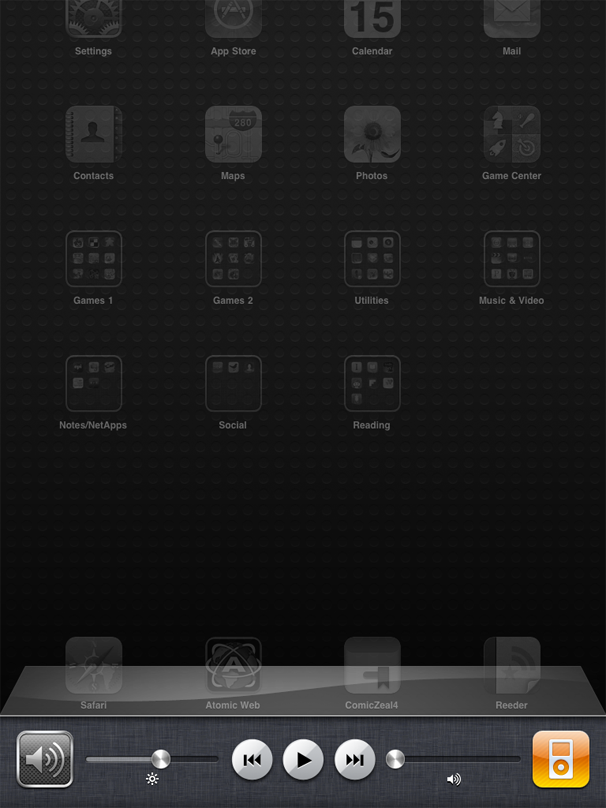
Multitasking and audio controls on iPadMultitask in iOS: You probably already know that you can press the Home button twice to bring up a list of currently running or suspended apps. However, you can also swipe the multitasking bar left to right to quickly access audio/video playback controls, a shortcut to the iTunes app itself, and volume controls. Also, when you choose whether the Side Switch should mute alert sounds or lock the screen orientation (see the item above), the function you didn't choose will appear in this shortcut bar.
Speed up your sentences: Double-tapping the spacebar while typing a message will type a period and then a space.
Don't let AutoCorrect mess you up: If you don't like the option AutoCorrect gives you, reject it by finishing the word as you prefer, and then tapping the suggestion. If you want to use AutoCorrect's choice, just type a space or punctuation mark, or tap Return, the moment it pops up.
Secure your backups: You can encrypt your iPad's backup data in iTunes. Just open the iPad in iTunes, click the Summary tab, and check Encrypt iPad backup under the Options heading.
Prevent automatic sync once: Sometimes you don't want to sync your iPad when you connect it to your computer. In this case, hold down Shift-Control (or Command-Option, on a Mac) in iTunes while plugging your iPad in, and iTunes will skip the automatic sync just once. Alternatively, you can safely interrupt a sync by dragging the unlock slider while the iPad is midsync.
Toggle data roaming: If you're using a 3G iPad, you can turn data roaming on in the Settings, Cellular Data menu in case you want to try receiving cellular Internet through a different provider (fees may apply). You can also check your data usage by going to Settings, General, Usage.
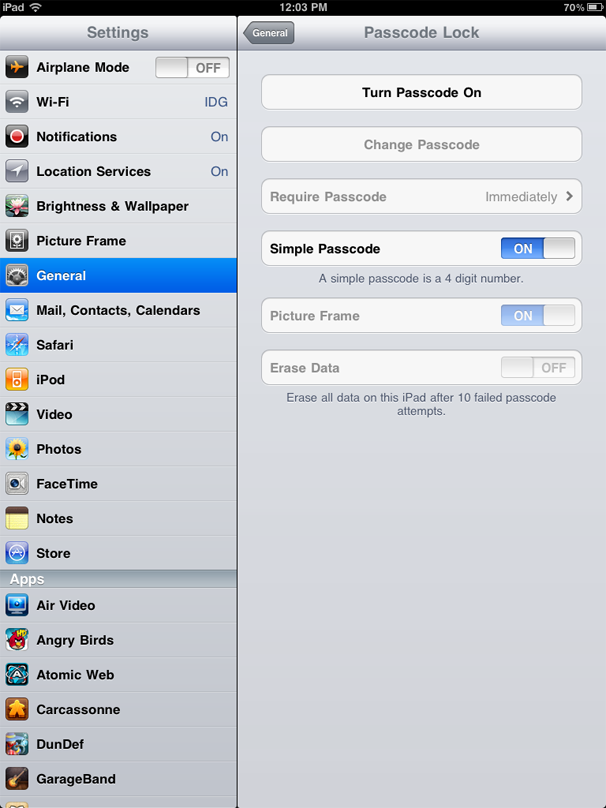
iPad passcodeMake your passcode more complicated: iOS defaults to a four-number passcode, but you can turn it off by going to Settings, General, Passcode Lock, Simple Passcode. Now you can use any full keyboard password to lock the iPad. The password also helps to encrypt your mail and attachments on the iPad, so you probably want to make it safer than a four-digit number.
Set the iPad to self-destruct in 10 seconds: Okay, not really--but you can set the iPad to erase all data after ten failed passcode entry attempts by checking the Erase Data option under Settings, General, Passcode Lock.
Tweak AutoFill: You can choose to enable Safari's AutoFill feature in Settings, Safari, AutoFill. From there, you can tell Safari to fill forms automatically either by using your specified contact information or by remembering the names and passwords you've entered while logging in to Websites in the past.
Sync your bookmarks: You can use iTunes to sync your iPad's Safari bookmarks with your PC's Web browser. Open the iPad tab in iTunes, click the Info tab, scroll down to the Other heading, check Sync bookmarks with, and choose your preferred browser.
E-mail photos: The easiest way to e-mail photos from an iPad is to open the Photos app, select a photo, press the button in the upper-right corner (the rectangle with the arrow, not the trash button), and choose Email photo... to send.
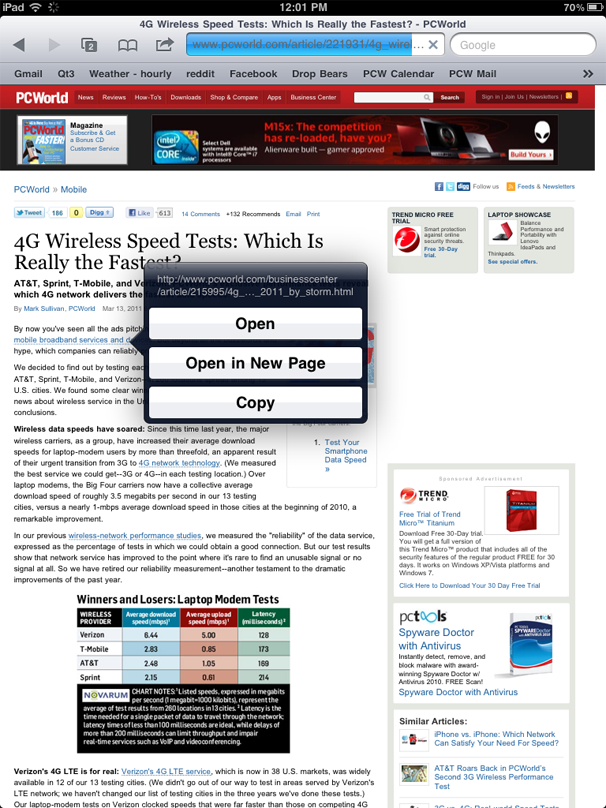
Web page links on iPadKnow your Web links: You can check a linked word's actual destination URL by touching and holding down on the link--it's a perfect way to sniff out phishy links.
Choose an app for e-mail attachments: You can open a file attached to an e-mail message by tapping the attachment in Mail, but if the default app isn't the one you want to use, you can press and hold and wait for a menu that lets you select an app.
Use the iPad as a picture frame: Not for physical photographs, silly. You can press the Picture icon in the lower-right corner of the Lock screen to have the iPad display its available photos.
Traffic conditions on iPadShow traffic conditions: Open Maps, press the dog-eared page icon in the lower right, and then turn the Traffic overlay on. If your iPad has an Internet connection, Maps will show real-time traffic conditions in the displayed area. Green means traffic is going at the posted speed limit, yellow means traffic is slower than the posted speed limit, and red means traffic is stop-and-go.
Share podcasts with friends: Listening to a podcast that you think a friend would like? You can share the link while you're listening to it by pressing the Email button while it's open.
Don't forget your downloads: You can immediately see if your iTunes account is due for any incoming downloads by opening iTunes on your PC, clicking the Store menu, and selecting Check for available downloads. This trick can come in handy if your download process is interrupted, or if you missed some bonus iTunes content that came with an album you purchased.
Turn on Universal Access: You can enable options such as closed-captioned movies, VoiceOver screen reading, zoom magnification, and inverted white-on-black text by selecting the iPad in iTunes, opening the Summary tab, and clicking Configure Universal Access under the Options heading.
Forget Wi-Fi networks: So you accidentally connected to a network once, and your iPad remembers it for life--whether you like it or not. On your iPad, go to Settings, Wi-Fi, and find the network under the 'Choose a Network' heading. Tap the blue arrow next to the network you want to remove, and tap the button on the top that says Forget this Network.
Specify your Spotlight searches: The iPad uses Spotlight for its built-in search functions, and you can tweak it to your needs in Settings, General, Spotlight Search. If you have a lot of data on your iPad, for example, you can selectively disable search in different categories (Contacts, Applications, Audiobooks, Notes, Events, Mail, and so on) that you don't use so that your desired results show up faster. You can also simply change the order in which the search-result categories display by dragging them up and down, so that your more frequently used search categories show up at the top of the page.
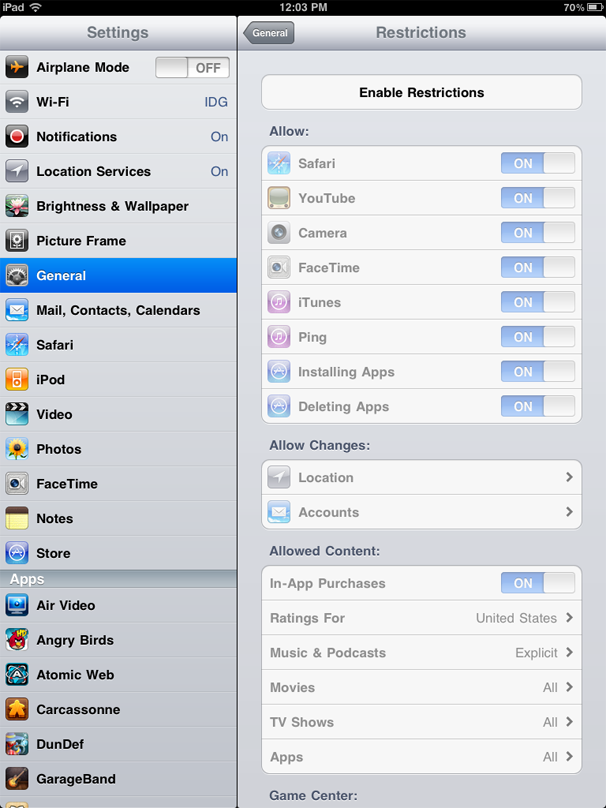
Restricting in-app purchases on iPadTurn off in-app purchases: Go to Settings, General, Restrictions and tap Enable Restrictions to selectively enable restrictions that apply to your apps, content, Game Center, and more. If you're worried about other people breaking your bank account on in-app purchases, just disable In-App Purchases under the 'Allowed Content' setting.
Switch up the fetching frequency: Your iPad automatically grabs new data, such as incoming e-mail. However, the iPad periodically activates apps that don't support iOS's Push feature so that they can go "Fetch" new data--which uses the tablet's battery life. You can tweak your Push and Fetch settings in Settings, Mail, Contacts, Calendars, Fetch New Data.
Change your e-mail signature: Don't be one of those people who leave the default 'Sent from my iPad' signature on all their messages. Change it in Settings, Mail, Contacts, Calendars, Signature to...well, anything but that.
Swap the search engine: Too good for Google? You can change Safari's default search engine by going to Settings, Safari, Search Engine. Alas, you can only choose from Google, Bing, or Yahoo--no bringing back AltaVista for you.
Take a screenshot of whatever is on the screen: Press Home and the sleep/wake button simultaneously. The screenshot will automatically appear among your photos.
Patrick Miller mostly covers how-tos and HDTVs for PCWorld, but every now and then they let him play with an iPad. Follow him on Facebook   or Twitter.

Chrome poised to take No. 2 browser spot from Firefox

Google's Chrome is on the brink of replacing Firefox as the second-most-popular browser, according to one Web statistics firm.
Data provided by StatCounter, an Irish company that tracks browser usage using the free analytics tools it offers websites, shows that Chrome will pass Firefox to take the No. 2 spot behind Microsoft's Internet Explorer (IE) no later than December.
As of Wednesday, Chrome's global average user share for September was 23.6%, while Firefox's stood at 26.8%. IE, meanwhile, was at 41.7%.
The climb of Chrome during 2011 has been astonishing: It has gained eight percentage point since January 2011, representing a 50% increase.
During that same period, Firefox has dropped almost four percentage points, a decline of about 13%, while IE has also fallen four points, a 9% dip.
That means Chrome is essentially reaping all the defections from Firefox and IE.
If the trends established thus far this year continue, Chrome will come close to matching Firefox's usage share in November, then pass its rival in December, when Chrome will account for approximately 26.6% of all browsers and Firefox will have a 25.3% share.
StatCounter is not the only Web metrics company that publicly posts browser share statistics, however. Data provided by U.S.-based Net Applications, for example, shows a much bigger gap between Firefox and Chrome: In its numbers for August, Net Application had Firefox with a 22.6% share of desktop browser usage, and Chrome at 15.5%.
Using Net Applications numbers, Chrome could have a 17.8% share by the end of 2011, short of Firefox's projected 22.3%. But if the pace of change lasts, Chrome should pass Firefox on Net Applications' chart by mid-2012.
Because Net Applications weights its numbers to more better estimate usage share in countries from which relatively few users navigate to sites it monitors, the company's data theoretically paints a more accurate picture because it factors in the huge Chinese market.
Some browser makers -- Microsoft in particular -- cite that as a reason why they regularly defer to Net Applications' numbers. Not coincidentally, Net Applications pegs IE with a much higher share -- 55.3% -- than do other metrics firms such as StatCounter.
Both Net Applications and StatCounter, however, have traced the same trends: usage declines of IE and Firefox, and a corresponding climb in Chrome.